TEMPER glossary
Every control is listed under the page and card it lives on, in the plug-in’s own words. Where a control shows words rather than numbers, its two ends are given.
Conventions
- Knobs read their value in words, with their two ends written under them. Drag to change a value; hold Shift for fine steps; double-click to restore the default.
- Hidden controls. A control the sound does not use is not shown. Its value stays in the program.
- More on a card opens a drawer with the rest of that part’s controls.
- Ranges below are what the control offers; each program sets its own starting value.
Header
Preset box. The family and program number over the program’s name. Click to open the Library; ‹ › step through programs. A dot before the name marks unsaved changes.
SCALE. The tuning in force, 12-TET by default. Opens the tuning menu: Load scale (Scala .scl or Ableton Live 12 .ascl), Load keyboard map (Scala .kbm), Clear, A4 Reference (400–480 Hz) and Follow (Auto, Preset, Scala or MTS-ESP).
QUALITY. Eco, Normal or High. Higher quality resolves more detail for more CPU.
TUNING. Anchored keeps each note on its target pitch; Free lets the body pull the pitch.
Volume. The output level, −60 to +6 dB.
Instrument / Stage. The instrument’s page, or its section on the Stage. The Stage tab appears on programs that can play as a section.
Instrument page
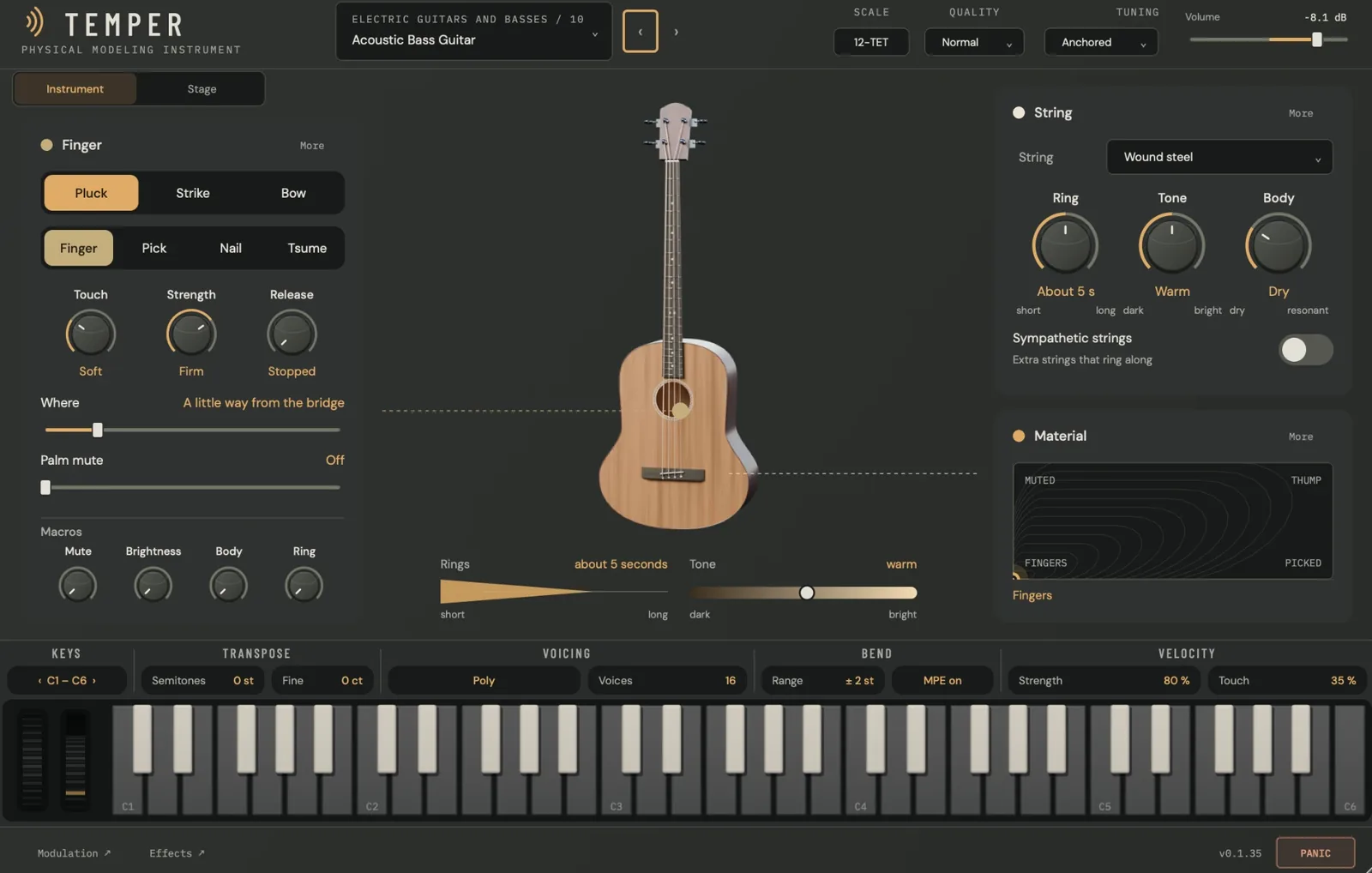
Playing card
The card is named for what plays the note: Finger, Pick, Nail, Tsume, Bow, Hammer, Mallet, Breath or Rattle.
| Control | Range | What it does |
|---|---|---|
| Pluck / Strike / Bow | choice | How the note is played. A bar, plate, drum or bell offers Strike and Bow. |
| Finger / Pick / Nail / Tsume | choice | The plucking tool. |
| Yarn / Rubber / Wood / Metal | choice | The mallet’s head. |
| Touch | soft to hard | How hard the finger, pick or mallet is. |
| Strength | gentle to strong | How strongly the note is played. |
| Pressure | light to heavy | The bow’s weight on the string. |
| Speed | slow to fast | The bow’s speed. |
| Release | stopped to let ring | What your hand does when you lift the key, on plucked and bowed strings. |
| Where | bridge to middle | Where along the string the note is played. |
| Palm mute | off to full | A hand resting on the strings. |
| Strike point | centre to edge | Where the mallet lands on a bar, plate, drum or bell. |
| Macros | 0 to full | The program’s four macros, each named for what it does. A wheel mark shows a macro the mod wheel also turns. |
More opens the playing drawer: the action, its strength and touch, how velocity sets strength, touch and release, and switches such as Input (audio from your host plays the held notes) where the program offers them.
Picture
The instrument. A photoreal picture of the program’s own instrument, with the point where the note is played. Drag it to move the pluck, strike or bow point. Right-click, or press Command-Shift-M, to reduce motion.
Rings. How long the note rings, short to long, in words such as about 5 seconds.
Tone. How bright the note is, dark to bright.
Instrument card
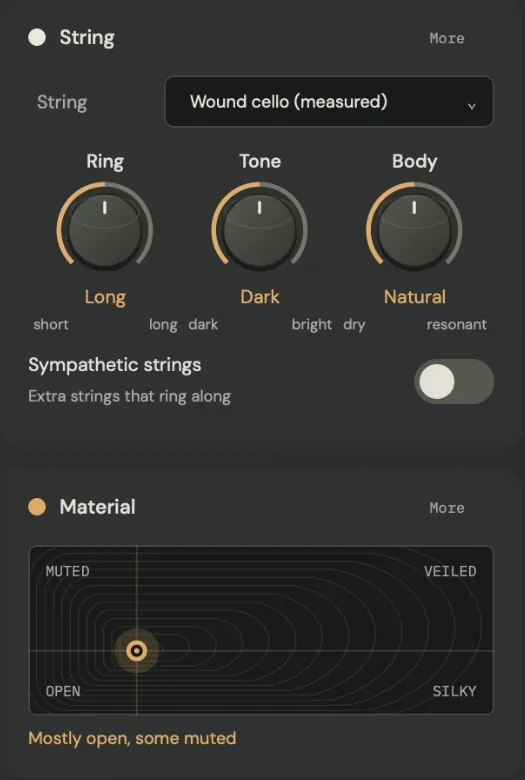
The card is named for the part that sounds: String, Bar, Plate, Gong, Cymbal, Drumhead, Bell, Bowl or Hybrid.
| Control | Range | What it does |
|---|---|---|
| String or Material | menu | What the string or surface is made of. |
| Ring | short to long | How long the note rings. |
| Tone | dark to bright | How bright the note is. |
| Body | dry to resonant | How much the instrument’s body resonates, on a string. |
| Shimmer | none to full | A slow shimmer in the ringing, on a surface. |
| Glide | down to up | A pitch that slides after the strike, as on a drum. |
| Sympathetic strings | on or off | Extra strings that ring along with what you play. |
Material pad
Material X / Material Y. The point on the pad, blending between the program’s four named corners. Each axis is named, such as Touch and Mute. The lower-left corner is home, the program as voiced. The mod wheel moves Material Y. The words under the pad say where you are, such as Mostly open, some muted.
Keyboard strip
| Section | Controls | Range |
|---|---|---|
| KEYS | ‹ C1 – C6 › | The five octaves shown, by octave. |
| TRANSPOSE | Semitones, Fine | ±24 st; ±100 ct. |
| VOICING | Poly with Voices, or Mono with Legato only or Always and the glide time | 1–64 voices; glide 0–2000 ms. |
| BEND | Range, MPE on / off | 1–48 st. |
| VELOCITY | Strength and Touch, or Dynamics and Colour on a bowed program | 0–100 %; Dynamics 0–40 dB. |
The keys play at the velocity of the height you click. The pitch wheel springs back; the mod wheel stays where you leave it. On a section, each lit key shows how many players are on it.
Footer
Modulation ↗. Opens the Modulation page.
Effects ↗. Opens the effects rack.
Version. The installed version, such as v0.1.35. Beside it, a one-line explanation of the control under the mouse.
PANIC. Silences every voice, tail and effect at once, without changing the program.
Library
Categories. All, Favourites, the fourteen families and User.
Search presets. Filters by name and family.
Star. Adds a program to Favourites.
SAVE USER PRESET. Saves the current sound under the name typed beside it.
SHOW FOLDER. Opens ~/Library/Audio/Presets/E8 Audio Labs/TEMPER.
Modulation page
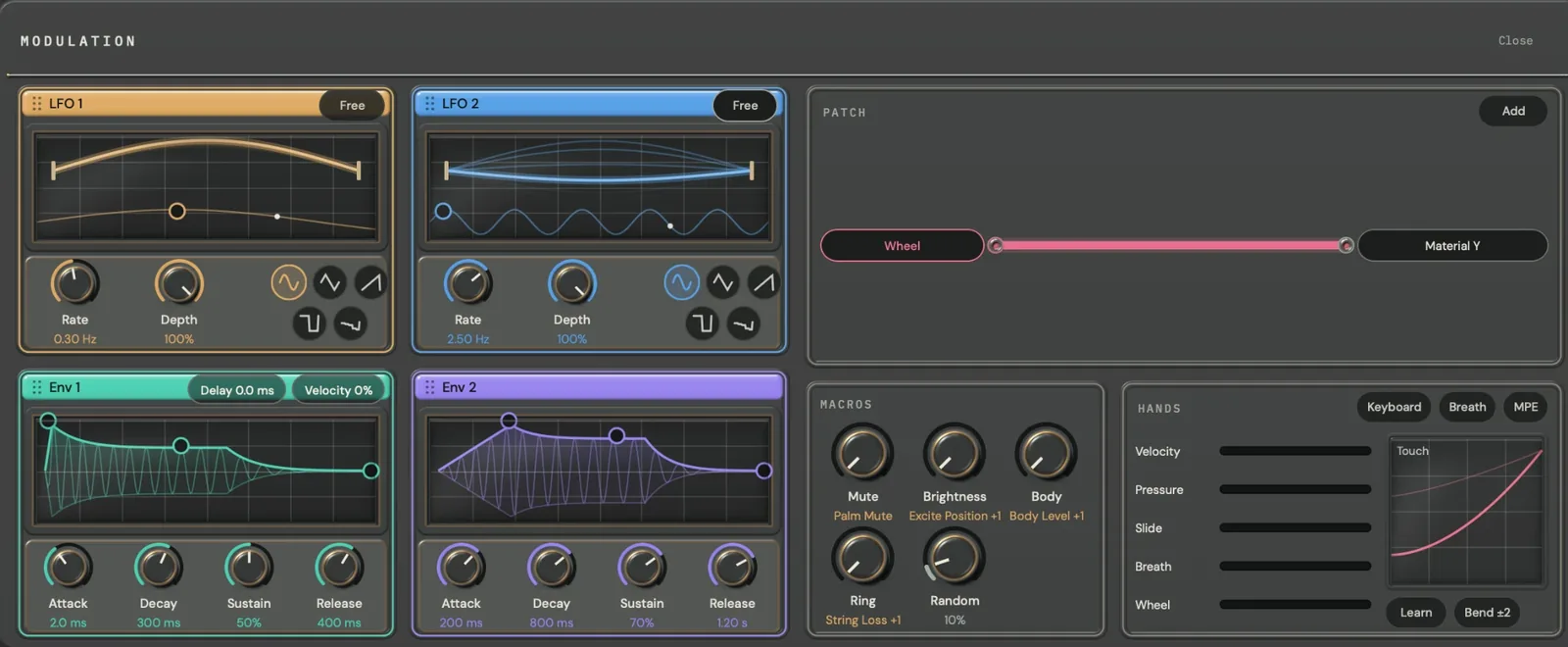
Sources
| Control | Range | What it does |
|---|---|---|
| LFO 1, LFO 2: Rate | 0.01–20 Hz, or synced | How fast the LFO moves. |
| Depth | 0–100 % | How far it moves. |
| Shape | sine, triangle, saw, square, random | The LFO’s wave. |
| Free / Sync | choice | Free-running, or locked to your host’s tempo. |
| Env 1, Env 2: Attack | 0.1 ms – 5 s | How fast the envelope rises. |
| Decay | 1 ms – 10 s | How fast it falls to the sustain level. |
| Sustain | 0–100 % | The level held while the key is down. |
| Release | 1 ms – 10 s | How fast it falls after the key comes up. |
| Delay (Env 1) | 0–2 s | A wait before the envelope starts. |
| Velocity (Env 1) | 0–100 % | How much velocity scales the envelope. |
Drag a source’s coloured header into the Patch to route it. Drag the points on its display to shape it.
Patch
Route. A cable from a source to a target, up to 16. Its thickness is the amount; drag it to change the amount. Click it to set:
- Source and Target;
- Amount;
- Curve: Linear, Log (reacts early), Exp (holds back, then arrives) or S (slow at both ends);
- Primary, on a continuous controller: the key sounds only once the controller rises, and the controller plays the note;
- Learn, to assign a controller by moving it;
- Remove.
Add. Adds a route.
Macros and Random
Macros. The four macros, each with what it moves written under its name.
Random. A new random value for every note, 0–100 %.
Hands
Velocity, Pressure, Slide, Breath, Wheel. Live meters; click one for its settings, such as the controller number.
Keyboard / Breath / MPE. Sets up the routes for that kind of controller.
Touch. The curve that shapes how velocity answers.
Learn. Listens for the controllers you move and assigns them.
Bend. The bend range (1–48 st), the MPE member bend range (1–96 st, 48 by default) and the glide time.
Stage
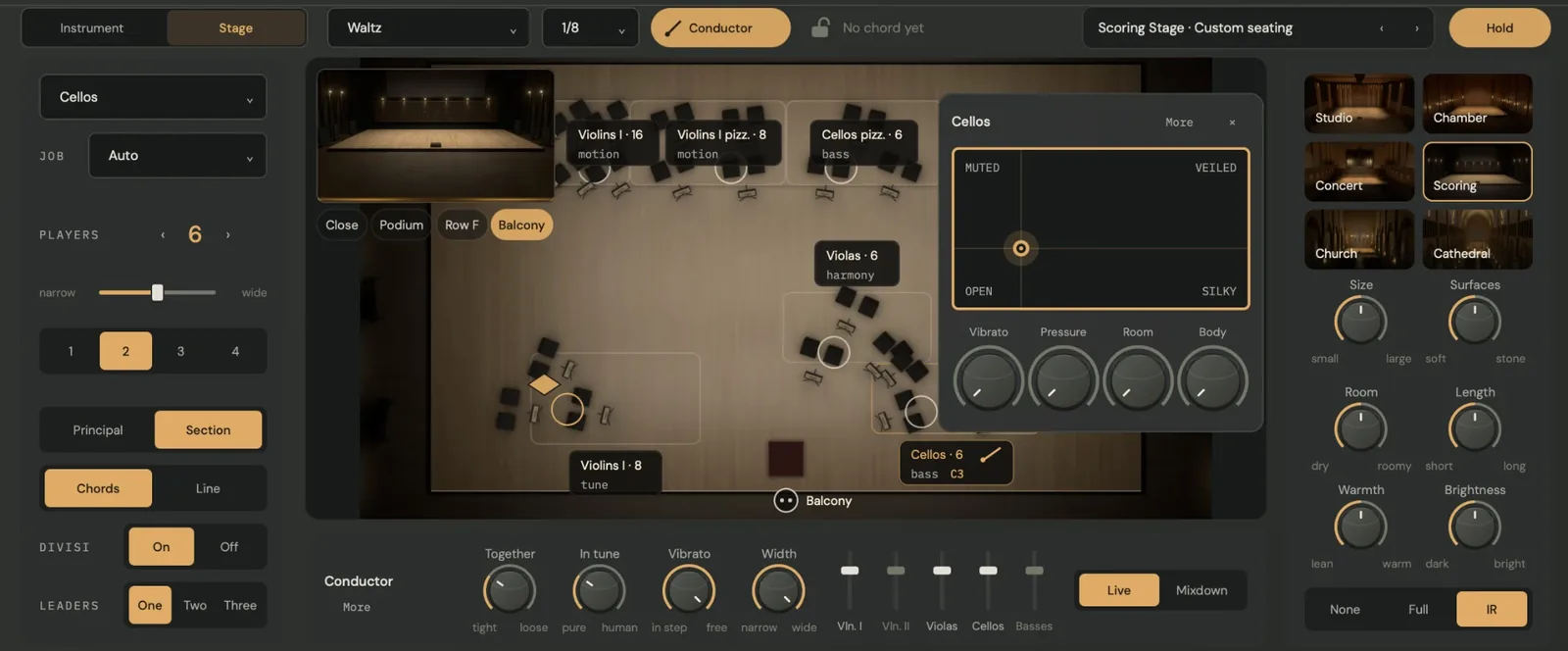
Stage bar
Texture. How the stage arranges what the conductor plays: Off, Chorale, Flowing, Pulse, Driving, Waltz, Tremolo, Answer, Counter-melody or Strum.
Rate. How fast the moving layer moves: 1/4, 1/8, 1/16, 1/32 and triplets.
Conductor. Brass on the track that conducts. Click it on another track to move the baton there; click it on the conductor to stop.
Padlock. Shows the chord and the key the stage hears, such as C major · key of C. Click to lock the key.
Stage preset. The hall and a seating plan (Standard, Antiphonal, Chamber or Centred), with ‹ ›.
Hold. Keeps the stage while you browse programs.
This section
| Control | Range | What it does |
|---|---|---|
| Section | Violins I, Violins II, Violas, Cellos, Basses, Solo in front, Guitars I, Guitars II, Bass Guitars | Where the section sits. Offers only seats your instrument can take. |
| Job | Auto, Tune, Harmony, Bass, Motion, Counter-melody, As written, Silent | This track’s part while the stage has a texture. |
| Players | 1–16 | How many players. One is the instrument alone. |
| Spread | narrow to wide | How wide the section sits. |
| Rows | 1–4 | How many rows deep. |
| Principal / Section | choice | The principal alone, or everyone. |
| Chords / Line | choice | Line gives every player the newest note, for melodies. |
| Divisi | On / Off | Shares a chord out among the players, or puts every player on every note up to a double stop. |
| Leaders | One, Two, Three | How many front players play in full detail. |
Seating chart
Section label. The section, its players, its job and the notes it plays.
Diamond. Your track’s place. Drag it to move the track, or onto another to swap.
Desks. Light as their players play. Click them for the section’s sound card.
From your seat. The hall from where you listen: Close, Podium, Row F or Balcony.
Conductor
| Control | Range | What it does |
|---|---|---|
| Together | tight to loose (0–60 ms) | How far apart the players start and stop. |
| In tune | pure to human (0–30 cents) | How far apart the players’ tunings are. |
| Vibrato | in step to free | How independent the players’ vibrato is. |
| Width | narrow to wide | How wide the hall sounds. |
| Section faders | −24 to +12 dB | Each section’s level: Vln. I, Vln. II, Violas, Cellos, Basses. |
| Live / Mixdown | choice | Live adds no latency; Mixdown lands the section on the beat with a latency the host compensates. |
Hall
| Control | Range | What it does |
|---|---|---|
| Studio, Chamber, Concert, Scoring, Church, Cathedral | choice | The hall. |
| Size | small to large | The room’s size. |
| Surfaces | soft to stone | What the walls are made of. |
| Room | dry to roomy | How much of the hall you hear against the players. |
| Length | short to long | How long the hall rings. |
| Warmth | lean to warm | How long the low end rings against the middle. |
| Brightness | dark to bright | How much shimmer the hall keeps up top. |
| None / Full / IR | choice | The hall’s tail. None keeps only the early reflections, for your own reverb. |
Effects page
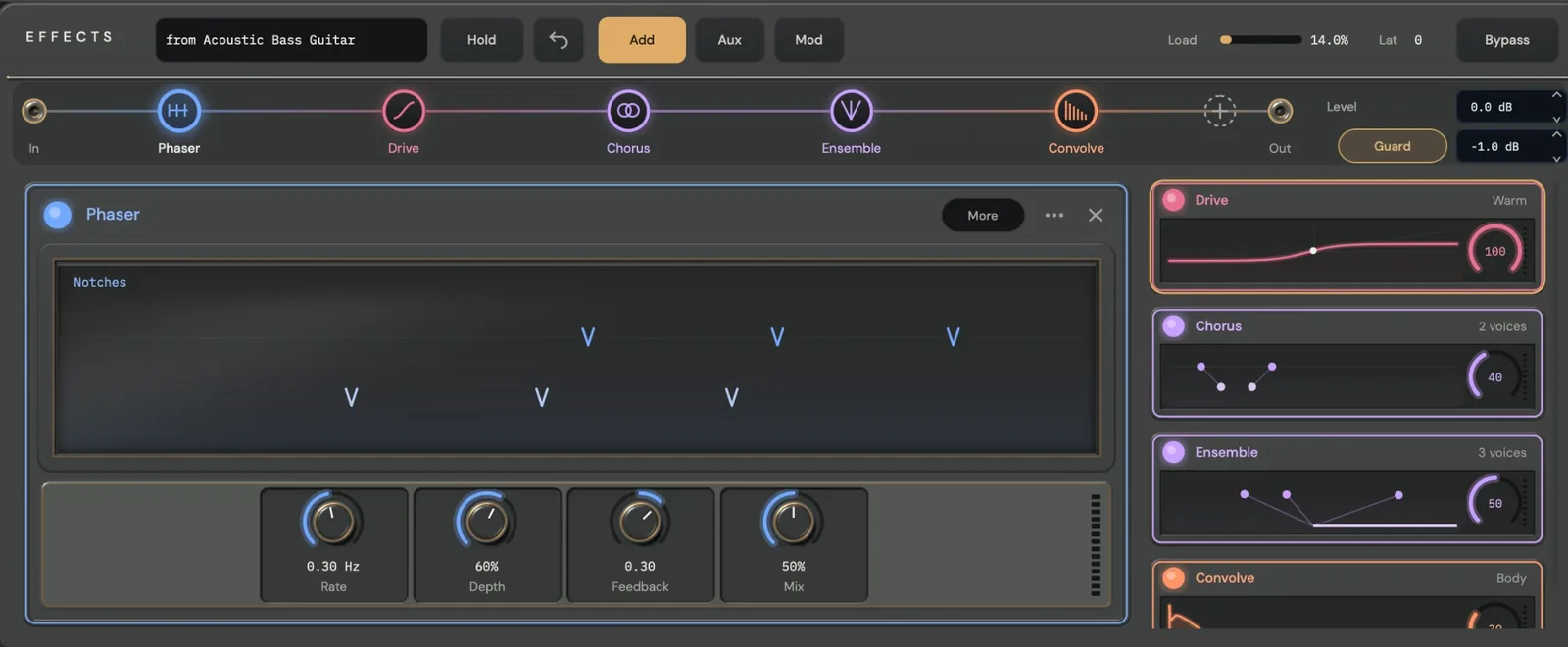
Rack presets. The field at the left of the toolbar: the factory racks, Load, Save and Save with audio.
Hold. Keeps this rack while you browse programs.
Undo / Redo. Steps back and forward through rack changes.
Add. Adds a module: EQ, Distortion, Grain Delay, Delay, Reverb, Chorus, Ensemble, Phaser, Compressor, Frequency Shifter or Convolution Reverb.
Aux. A parallel lane between a send and a return.
Mod. The rack’s 16 modulation routes.
Load / Lat. The rack’s share of CPU, and its latency in samples.
Bypass. Turns the whole rack off.
Rail. In, the modules in order, and Out. Drag a node to reorder. On the rail the modules are named EQ, Drive, Grains, Delay, Reverb, Chorus, Ensemble, Phaser, Comp, Shift and Convolve; a second bank reads B.
Level. The rack’s output, −24 to +12 dB.
Guard. Limits the output at its ceiling, −12 to 0 dB, −1 dB by default.
Module card. The selected module’s graph above its knobs, with More for the rest and … for its menu.
Tile. Each other module, with a live picture, a mix ring and an output meter.
The product page lists every module’s controls and ranges.
TEMPER FX
Input mode. Free Running rings under the input at all times; MIDI Gated sounds only through held notes.
Input trim. How hard the input plays the instrument, −60 to +12 dB.
Dry. The unprocessed input, mixed in and aligned in time.
Terms
Conductor. The track whose notes the stage arranges.
Corner. One of the four named variations on the material pad. The lower-left corner is home.
Divisi. Sharing a chord’s notes among a section’s players.
Home. The program exactly as voiced: Material X and Y at 0, macros at 0.
Job. A section’s part in a texture: the tune, the harmony, the bass, motion or a counter-melody.
Keyswitch. One of the four lowest keys of the keyswitch lane (MIDI notes 12 to 15), which choose a material corner instead of playing.
Leader. A front player who plays in full detail.
MPE. MIDI Polyphonic Expression: each note on its own channel, with its own bend, pressure and slide.
Orchestrate. The Stage’s arranger, which turns one line or chord into a part for every section.
Principal. A section’s first player, the instrument as it sounds alone.
Program. One complete instrument from the factory library, numbered 1 to 115.
Section. One TEMPER track playing as a group of 1 to 16 players.
Stage. The shared hall where every section in a project sits.
Texture. How Orchestrate arranges what you play.