TEMPER tutorials
Each tutorial starts from a factory program, so you hear the same thing the text describes. Open the program from the Library (click the preset box in the header). Your changes are never saved over a factory program: press SAVE USER PRESET in the Library to keep them.
Pluck a bass and move where you pluck
Load 10 Acoustic Bass Guitar (Electric Guitars and Basses).
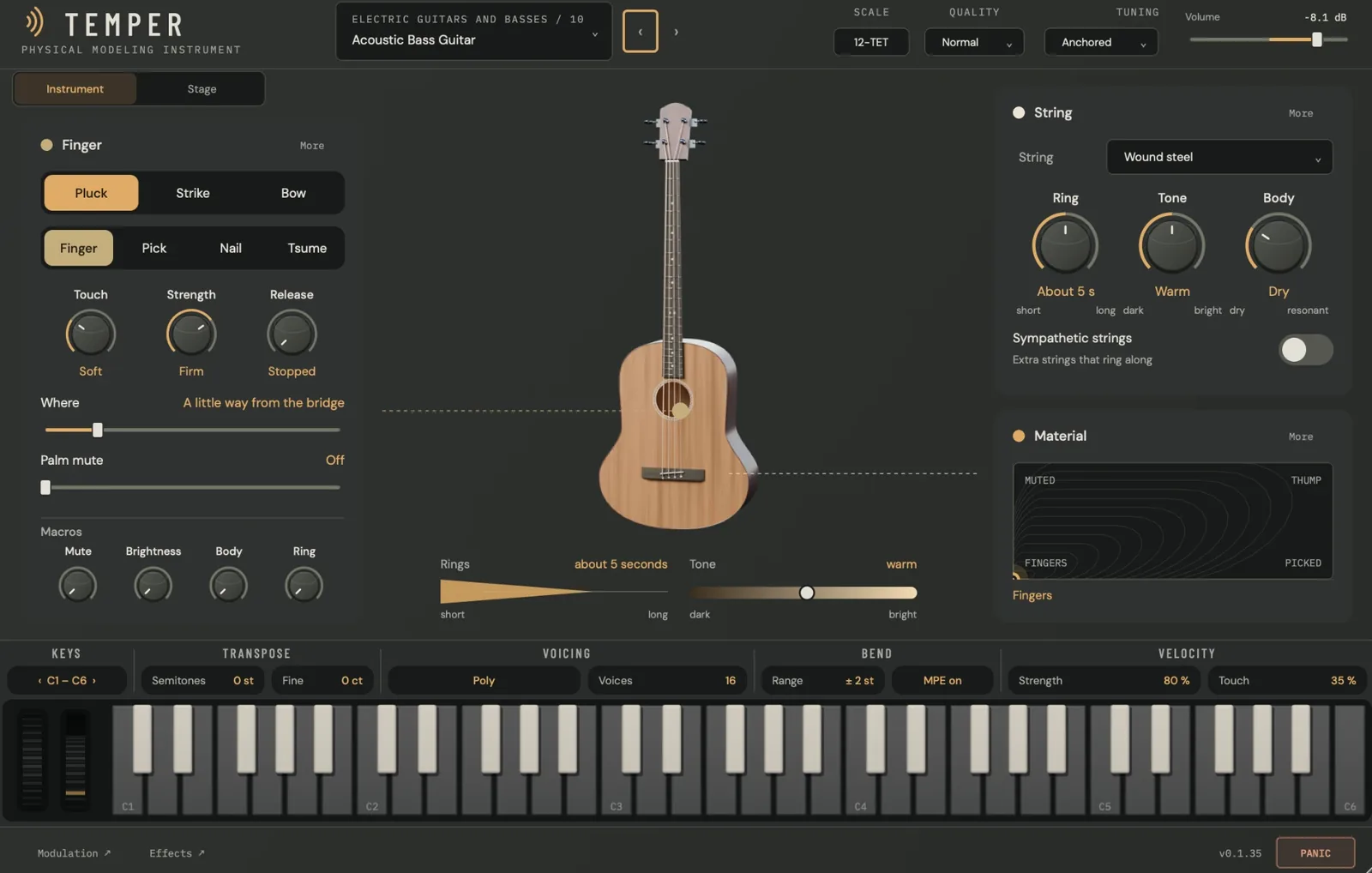
- Play a low line. The card on the left is titled Finger: the note is plucked with a fingertip, a little way from the bridge.
- Move where you pluck. Drag Where toward the middle. Near the bridge the note is bright and thin; toward the middle it is round and hollow. You can also drag the point on the picture.
- Change the tool. Pick lets go of the string at once, so the attack is brighter. Nail plucks with a fingernail and Tsume with a koto player’s plectrum.
- Set the touch. Touch runs from soft to hard; Strength from gentle to strong. Both read in words under the knob.
- Mute it. Raise Palm mute for a short, dead note, or turn the Mute macro.
- Let it ring. Release is stopped by default: when you lift the key, a hand comes down on the strings. Turn it toward let ring, play a chord, and lift your hands. The sustain pedal holds the notes whatever Release says.
- Blend the material. Push the mod wheel up: the material pad moves from Fingers toward Muted. Drag the point right toward Picked, or to the top-right corner, Thump. Play after each move: on a string, the next note takes the new blend.
Strike a bar, then change its material
Load 55 Marimba (Mallets and Tuned Metal).
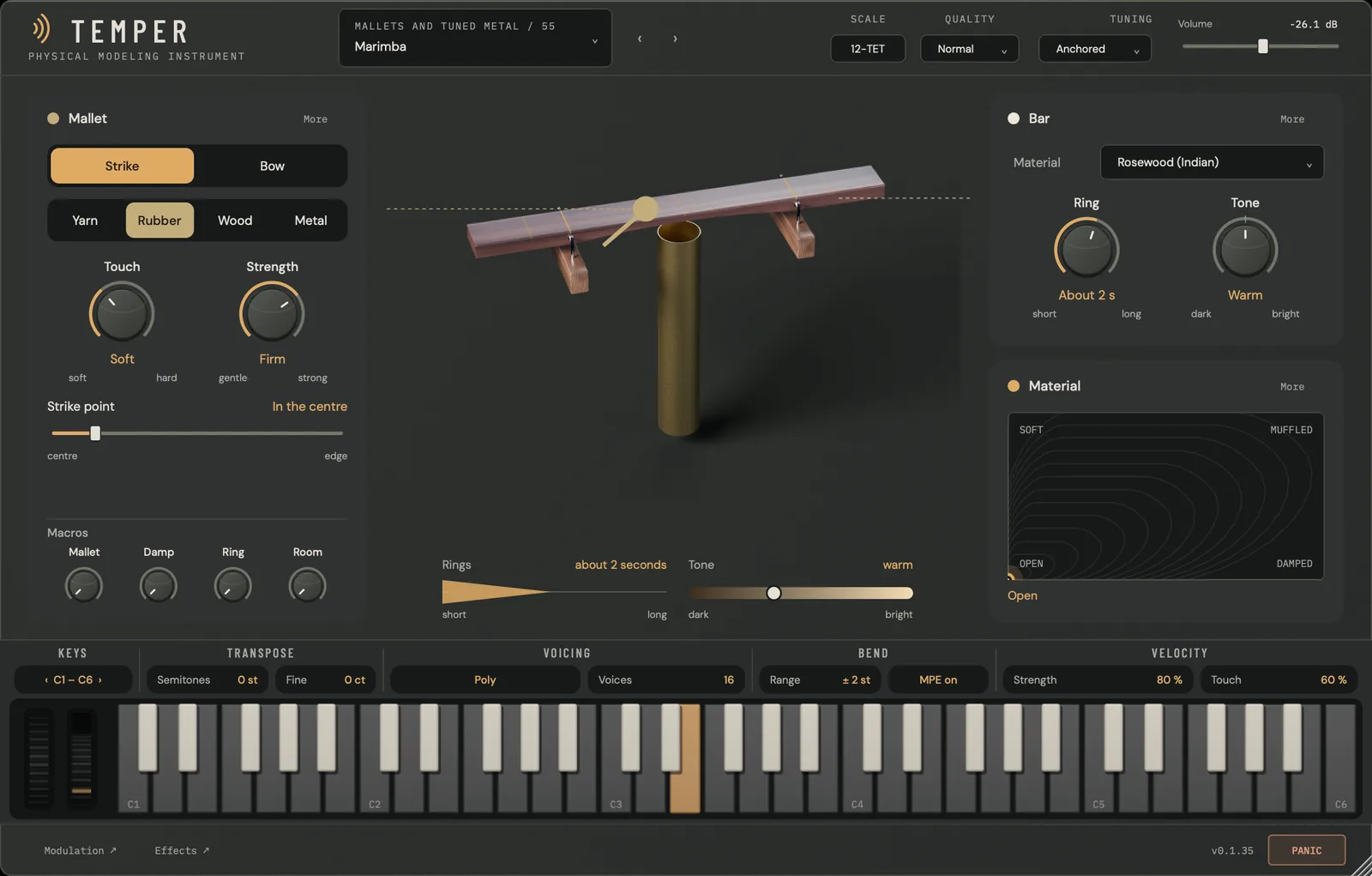
- Play a chord. The card is titled Mallet: a rubber mallet strikes the centre of a rosewood bar.
- Change the mallet. Yarn is soft and round, Wood bright, Metal hard and ringing.
- Move the strike point. Drag Strike point from the centre toward the edge. The balance of overtones changes as the mallet moves.
- Change the material. The Bar card’s Material menu chooses what the bar is made of. Ring sets how long it sounds and Tone how bright.
- Blend on the pad. Hold a chord and drag across the pad, from Open to Damped, Soft and Muffled. On a struck bar, the notes already sounding follow the blend.
- Try a drum. Load 69 Floor Tom. The card on the right is now Drumhead, with Shimmer and Glide, and its pad runs from Tight to Thud.
Bow a section of cellos
Load 107 Cellos · 6 players (String Orchestra).
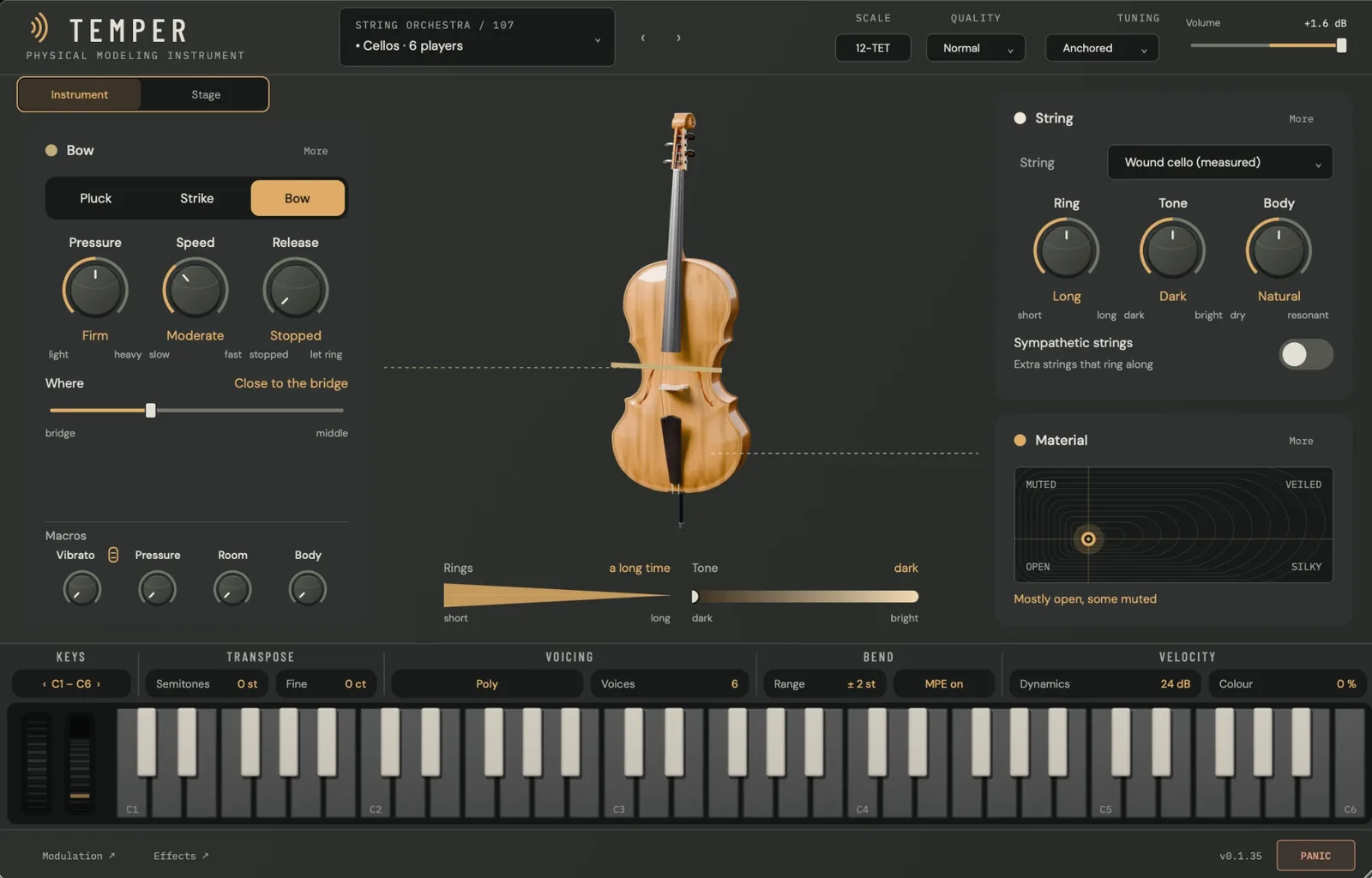
- Hold a long note. The card is titled Bow. Velocity sets the bow’s dynamics: play softly and firmly and listen to the change in level and colour (Dynamics and Colour under VELOCITY).
- Lean on the bow. Pressure runs from light to heavy, Speed from slow to fast. More pressure and less speed gives a dense, grainy tone; less pressure and more speed, an airy one.
- Move the bow. Where runs from the bridge to the middle. Near the bridge the tone is glassy; toward the middle, soft.
- Add vibrato. Push the mod wheel up. The Vibrato macro carries the wheel mark: the wheel turns it, and also moves the pad’s vertical axis toward Muted.
- Shape the section’s sound. Drag the pad toward Silky or Veiled, and turn Room and Body.
- Hear one player. Click Stage, set Players to 1, and you hear the solo cello. Set it back to 6.
Seat a string orchestra on the Stage
Put one String Orchestra program on each of five tracks: 104 Violins I, 105 Violins II, 106 Violas, 107 Cellos and 110 Basses. Open any of them and click Stage.
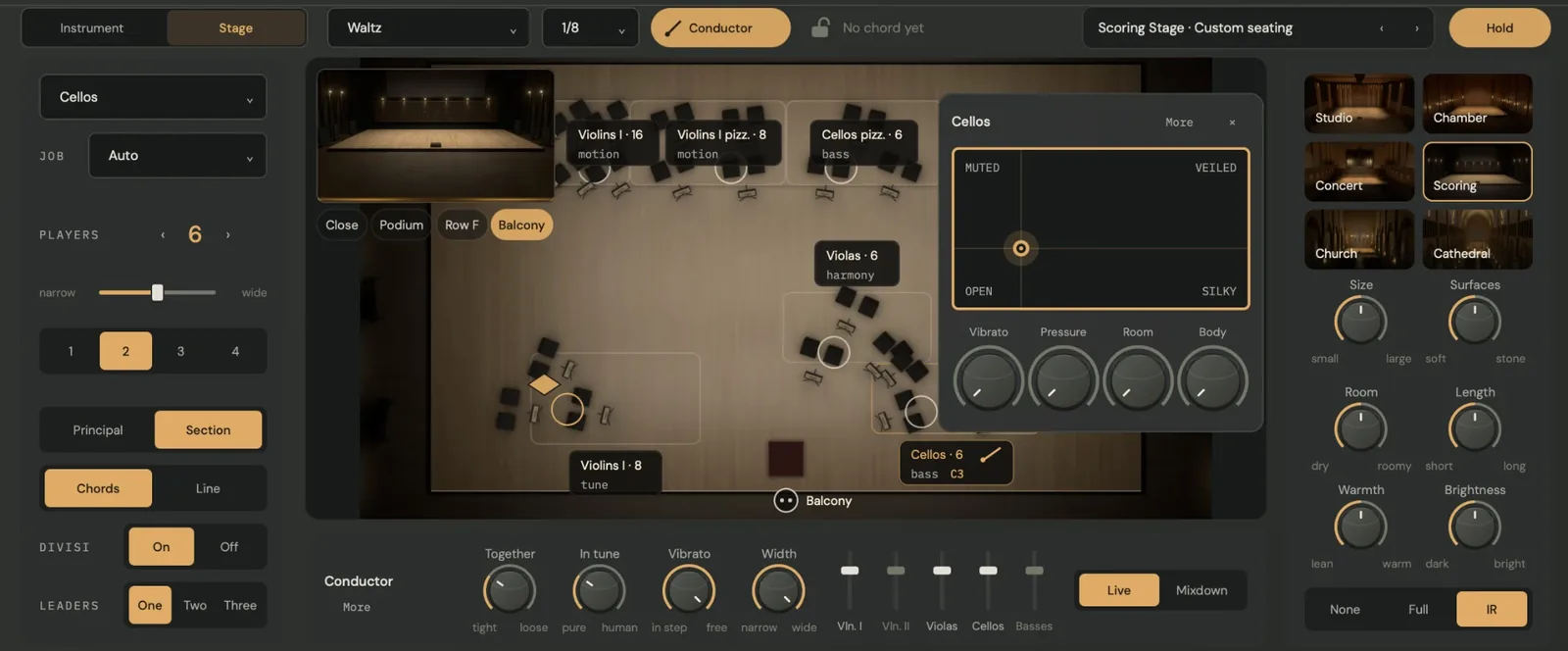
- Read the chart. Every track sits in its own place on one stage, seen from above. Each label gives the section, its number of players and, while it plays, its notes. Your own track is drawn in brass. Each desk lights as its players play.
- Listen from a seat. The picture in the chart’s corner is the hall from where you listen. Close and Podium hear the players near and dry; Row F and Balcony hear more of the hall.
- Choose a hall. On the right: Studio, Chamber, Concert, Scoring, Church or Cathedral. Size and Surfaces (soft to stone) change the room itself; Room, Length, Warmth and Brightness shape how it sounds. None, Full and IR choose the hall’s tail; None leaves room for your own reverb. Change the hall on any track and every track follows.
- Set the section. On the left: the Section seat, its Job, the number of Players (1 to 16), how wide and how many rows deep they sit, Principal alone or the whole Section, Chords or Line, Divisi on or off, and one to three Leaders.
- Conduct. Under the chart: Together (tight to loose), In tune (pure to human), Vibrato (in step to free) and Width (narrow to wide), and a level fader per section.
- Move a section. Drag your track’s brass diamond to reseat it, or onto another track to swap the two. Click a section’s desks for a small card with its sound: the material pad and the program’s macros.
- Choose the timing. Live adds no latency. Mixdown plays the section a little early, by a latency your host compensates, so its notes land on the beat.
Orchestrate a chord across every section
With the five sections from the last tutorial on the Stage, arm the track you play into.
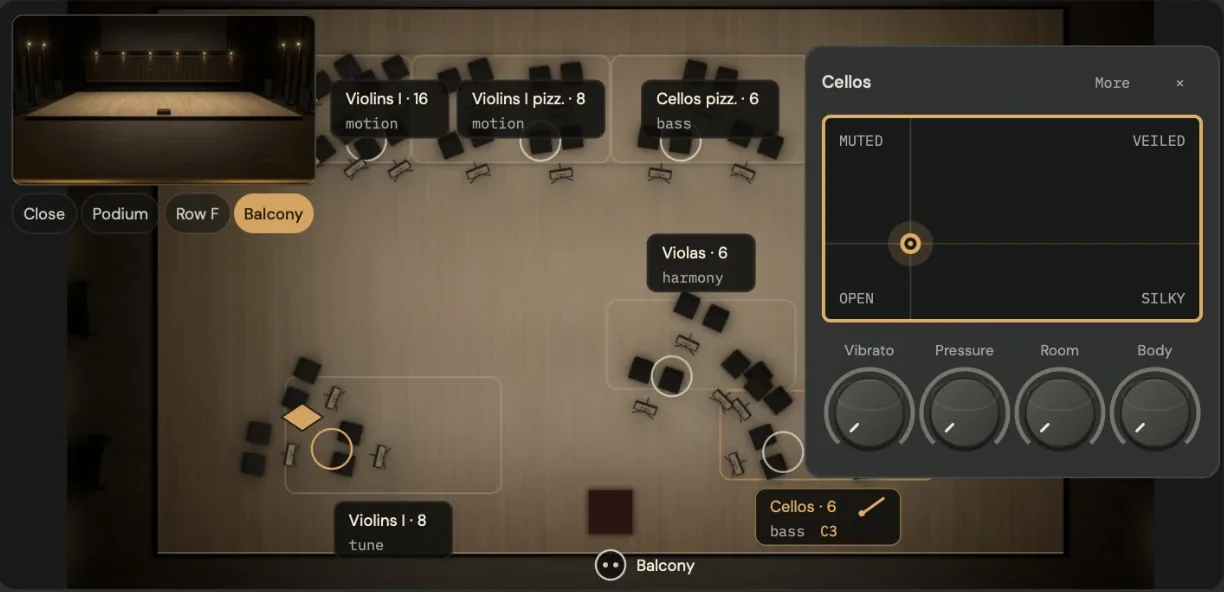
- Choose a texture. In the stage bar, open the texture menu and choose Chorale. This track becomes the conductor: the Conductor chip turns brass.
- Play a chord. Every section plays its own part of it: Violins I the tune, Violins II and Violas the harmony, Cellos and Basses the bass. Each label on the chart shows its section’s job.
- Set it moving. Try Flowing (an arpeggio), Pulse, Driving, Waltz, Tremolo, Answer or Counter-melody. The menu beside the texture sets how fast the moving layer moves, from 1/4 to 1/32, with triplets; it follows your song’s tempo.
- Lock the key. The stage bar reads the chord and the key it hears. The key is a guess until you click the padlock, which keeps it.
- Give a track its own part. On another track, set Job to As written to play its own clip, or Silent to leave it out. Auto takes the texture’s job; Tune, Harmony, Bass, Motion and Counter-melody force one.
- Stop conducting. Click the Conductor chip on the conducting track, or choose Texture off, which plays exactly what you play.
The guitar sections work the same way: load 111 Classical Guitars I, 112 Classical Guitars II and 115 Bass Guitars and choose Strum.
Draw modulation on the Modulation page
Load 10 Acoustic Bass Guitar and click Modulation ↗ in the footer.
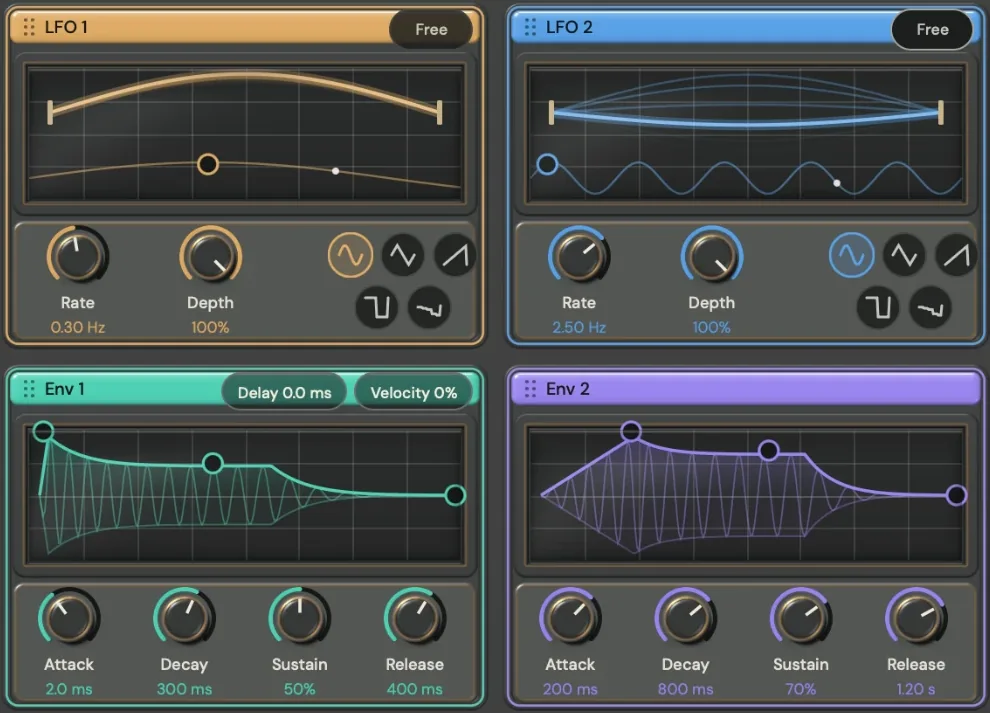
- Look at the sources. LFO 1 and LFO 2 each show what they do over their waveform. Rate, Depth and the five shape buttons (sine, triangle, saw, square and random) set them; Free switches to Sync, locked to your host’s tempo. Env 1 and Env 2 draw a note’s contour: drag the points, or turn Attack, Decay, Sustain and Release. Env 1 also has Delay and Velocity.
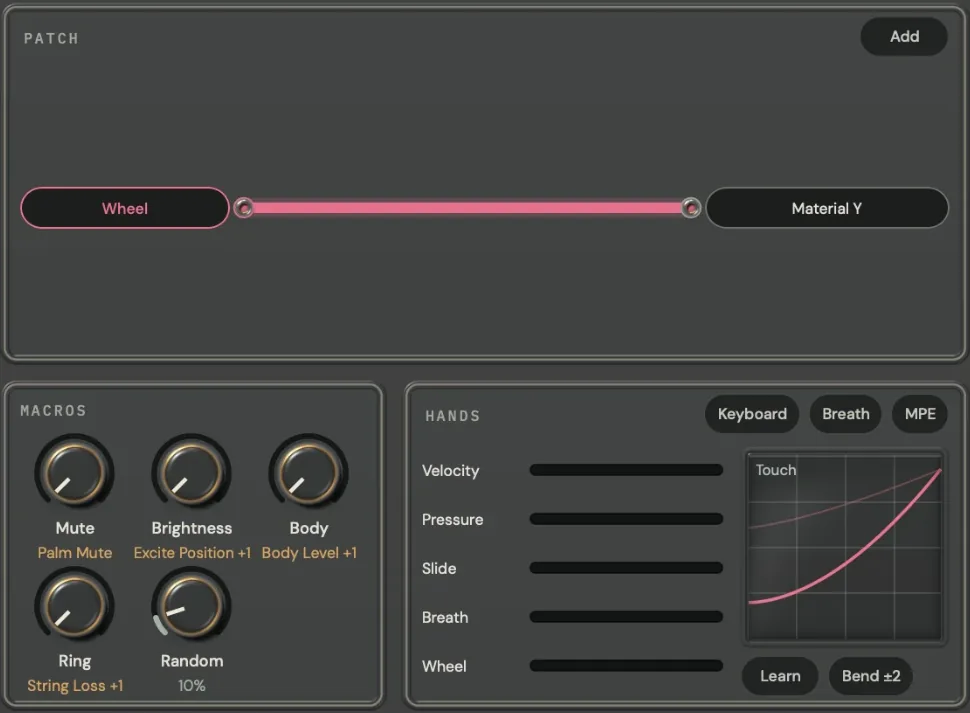
- Make a route. Drag LFO 1’s coloured header onto a target in the Patch, or press Add there and choose a source and a target. The route appears as a cable.
- Set the amount. Drag the cable: its thickness is the amount. Click it to open the route, where you set its source, target, amount and curve, or remove it.
- Read the macros. Macros shows each macro with what it moves under its name, and Random, a new value for every note.
- Play with your hands. Hands shows Velocity, Pressure, Slide, Breath and Wheel live; click a meter for its settings. Keyboard, Breath and MPE set up the routes for that kind of controller. The Touch curve shapes how velocity answers. Learn listens for the controllers you move; Bend opens the bend ranges and the glide time.
- Close returns to the instrument.
Build an effects chain
Stay on 10 Acoustic Bass Guitar and click Effects ↗.

- Read the rail. The chain runs from In to Out, one coloured node per module. This program’s rack is Phaser, Drive, Chorus, Ensemble and Convolve.
- Reorder it. Drag Drive to the left of Phaser and listen to the difference.
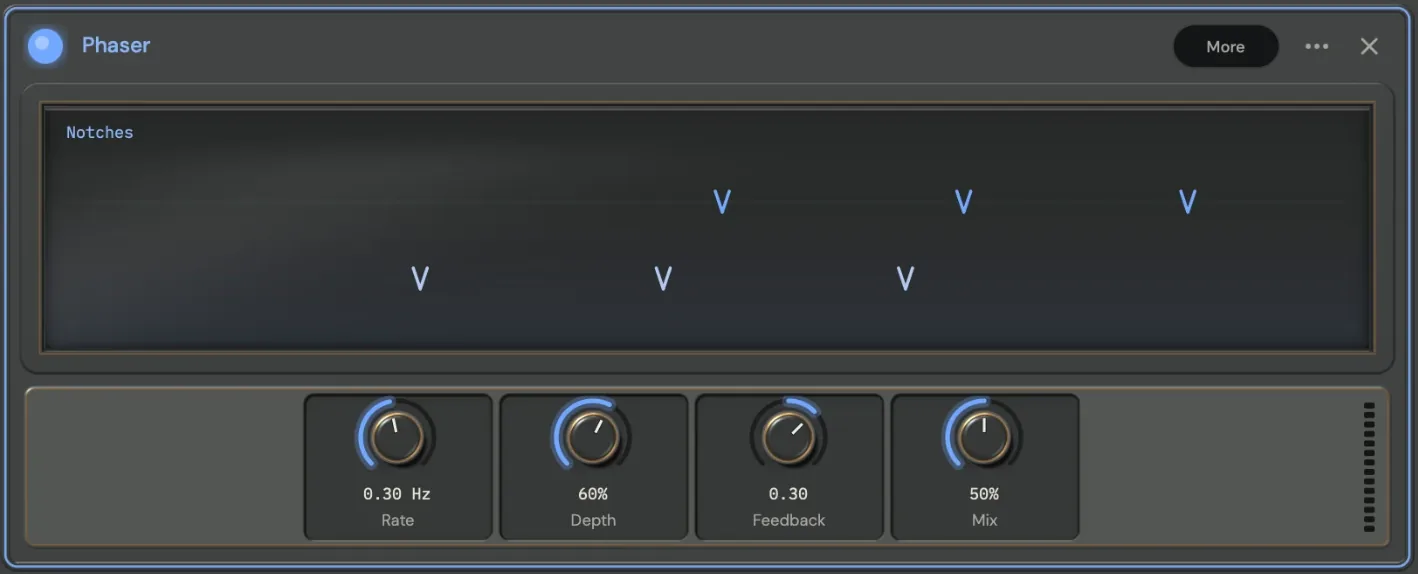
- Open a module. Click Phaser. It opens on a large graph, here its moving notches, above its knobs: Rate, Depth, Feedback and Mix. More holds the rest. The other modules shrink to tiles with a live picture and a mix ring.
- Add one. Press Add and choose Delay. Choose a mode, then set Time and Feedback.
- Keep the rack. Hold keeps this rack while you browse other programs. The rack preset field loads and saves whole racks, including the nine factory racks.
- Protect the output. Guard limits the output at its ceiling, −1 dB by default. Level sets the rack’s output; Bypass turns the whole rack off.